Set up an email signature in Outlook on the Web
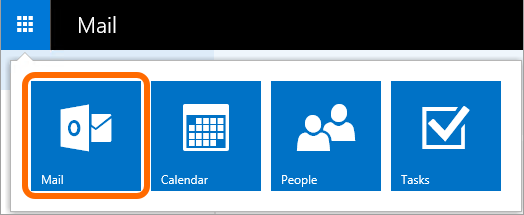
Log in to your Outlook on the Web account and go to the Mail app.
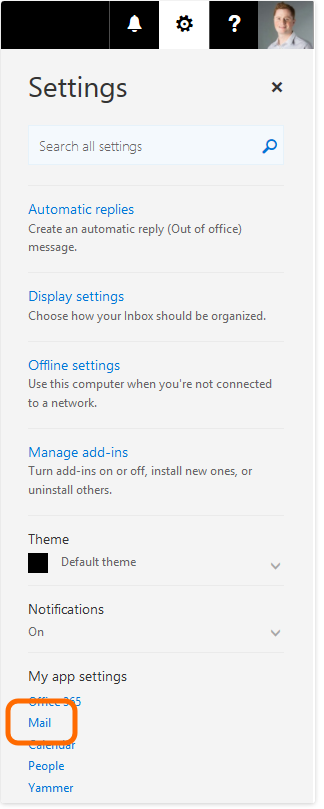
Go to Settings (it’s a gear icon at the top right-corner of the screen) and click Mail.
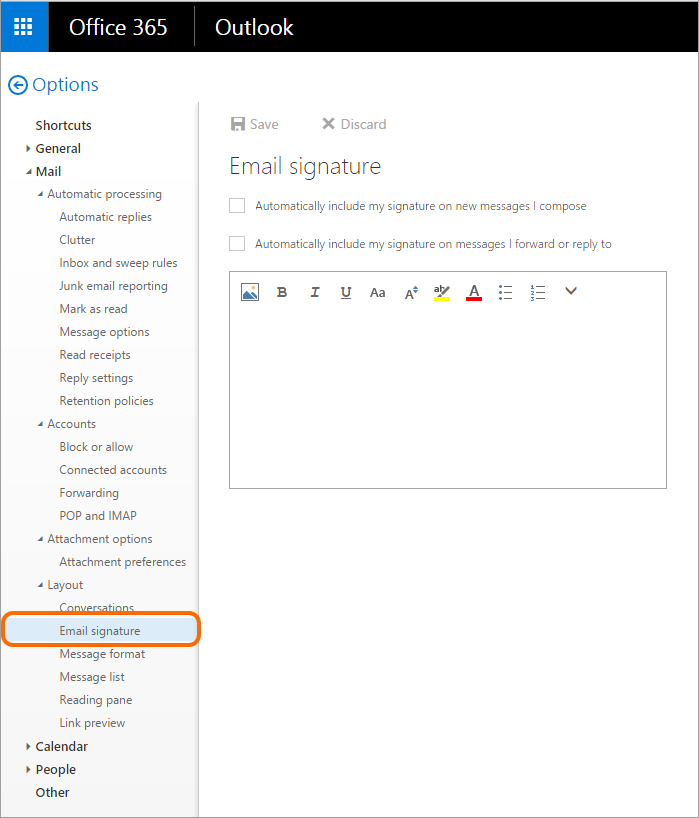
On the left pane, extend the Mail section, then Layout and select Email signature.
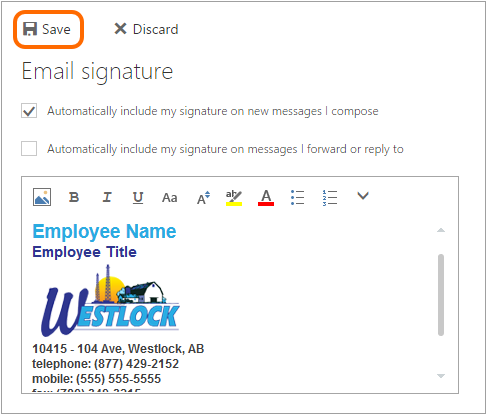
To make signature appearing in every new email message, check the Automatically include my signature on new messages I compose box. Then, compose your email signature using the template above. (Open the link, copy the signature, paste it in the box, then edit it with your details.)
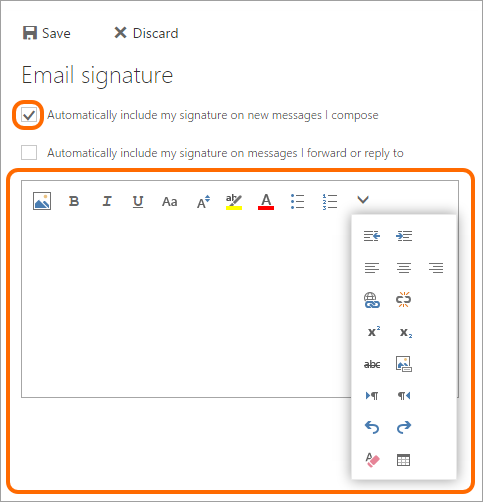
Once your signature has been created, hit the Save button so that all changes take effect.
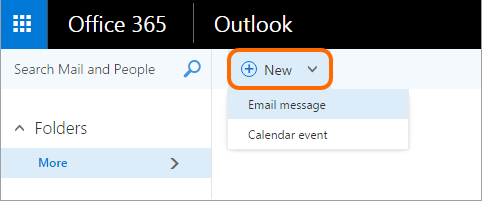
Go back to your main Mail view and click the plus icon next to the New button or click the arrow and select Email message.
Your signature should be already applied to a newly opened message.
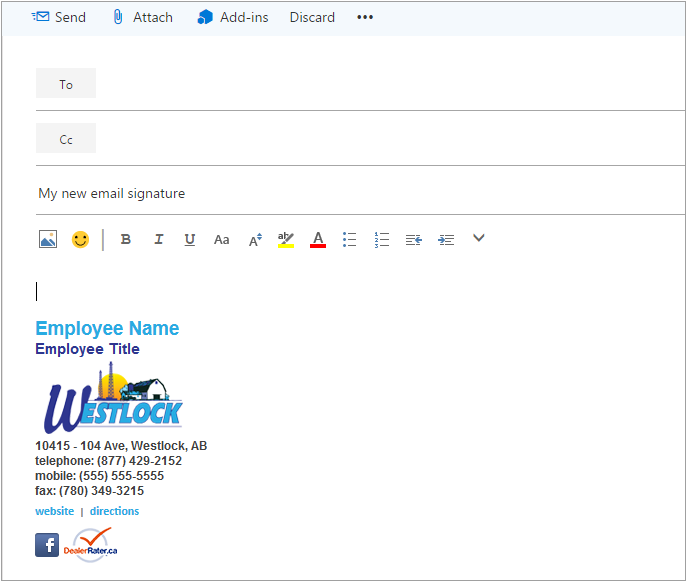
That’s it! Now you do not have to waste time on creating a signature every time you write a new email. Your signature will be already there.
If you want to change your email signature just follow the above steps again.