1. Download the Outlook for iOS app
If you don't have Outlook for iOS installed, you can download it from the Apple App Store here.
2. Open Outlook for iOS
Open Outlook for iOS by tapping the icon:
3. Add your account
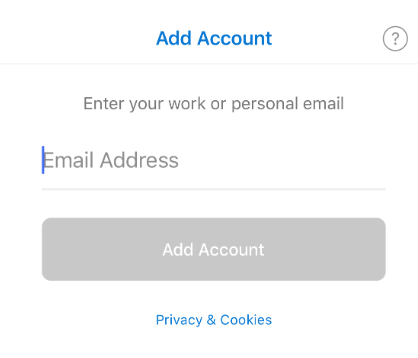
If it's your first time opening Outlook you will see this screen:
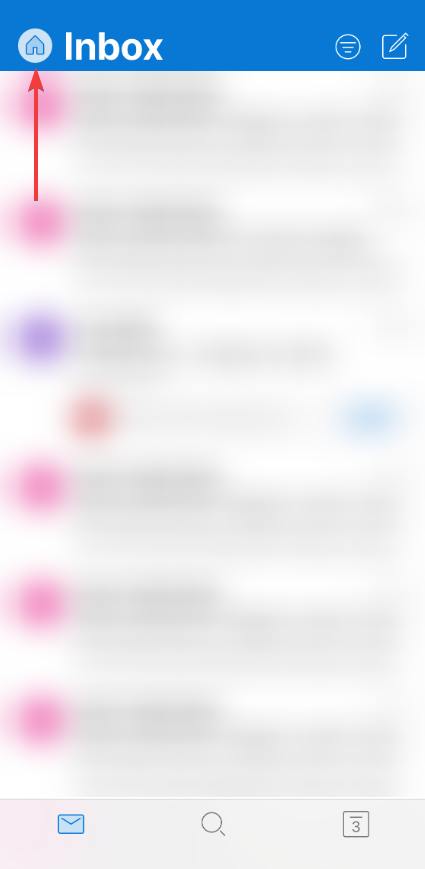
If not, tap Home > Settings > Add Account > Add Mail Account > Add Email Account
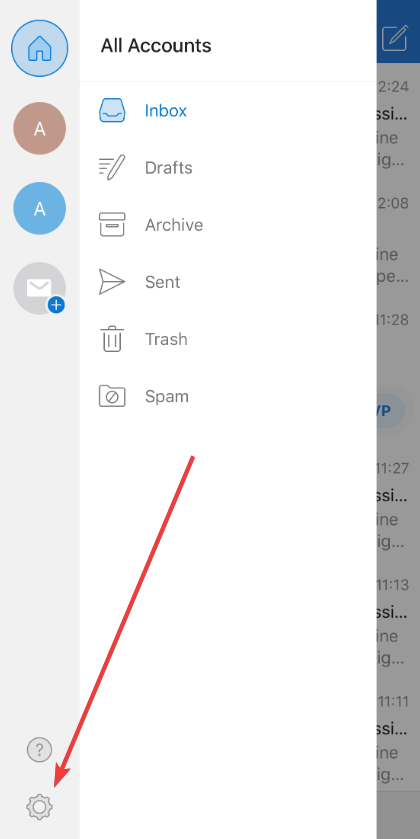
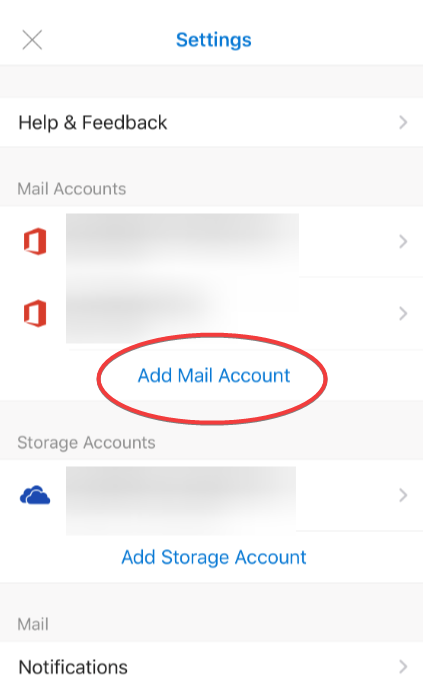
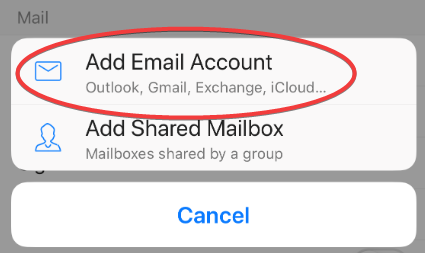
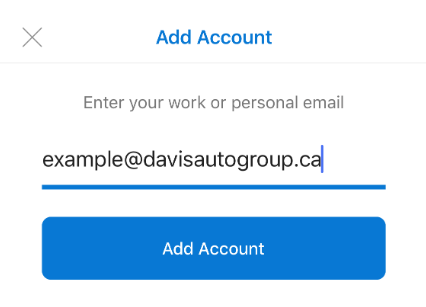
Type your full email address and tap Add Account
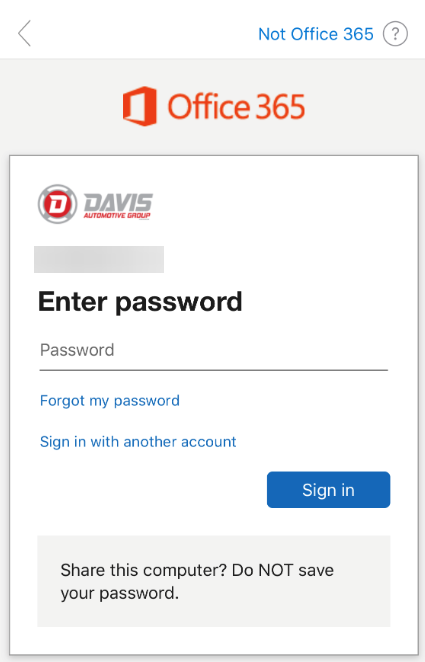
Enter the password for your email account and tap Sign In
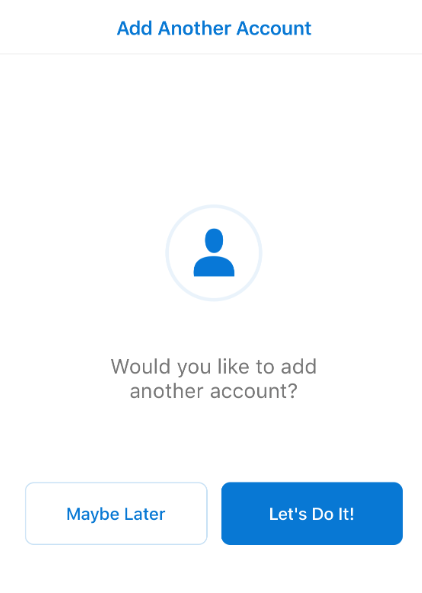
4. Add Another Account or Finish
Finally, you will be asked if you'd like to add another account. Tap 'Maybe Later' if you are done, or if you would like to add another account, tap 'Let's Do It!' and repeat the same process for any additional email accounts.